
Text Message (SMS) Consent
WashNexus360, a trade name (DBA) of Managed IT Services 360 LLC, texts a customer a receipt only when the customer asks for one on a WashNexus360 self-service car wash kiosk and ticks the consent box. The pictures below are the real WashNexus360 kiosk screens, shown with a test phone number.
The kiosk is the only way to opt in. Our website, our mobile app and text keywords do not sign anyone up for text messages. Replying START only restores texts for a number that opted in at a kiosk and later replied STOP.
1. How a customer opts in, step by step
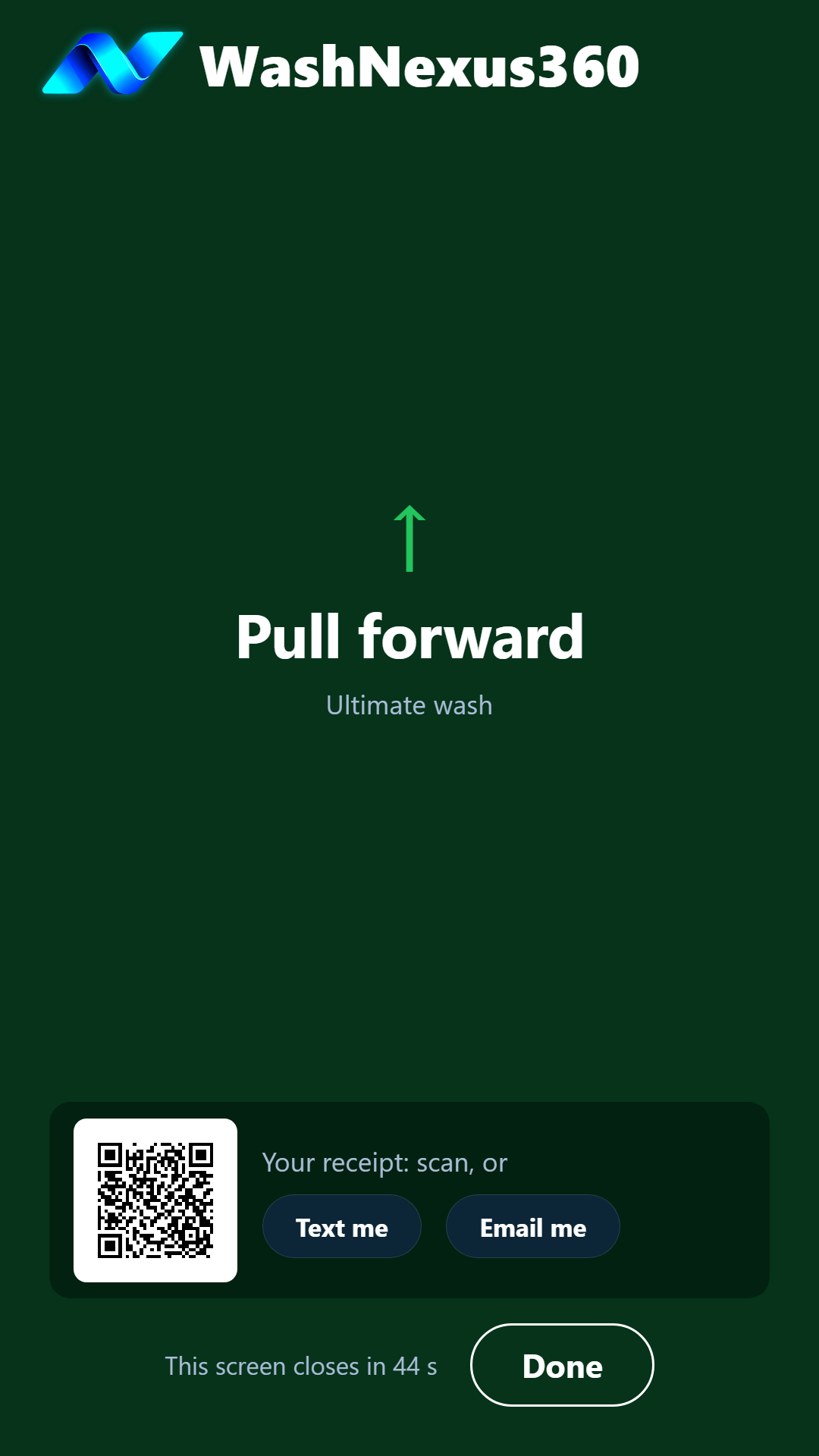
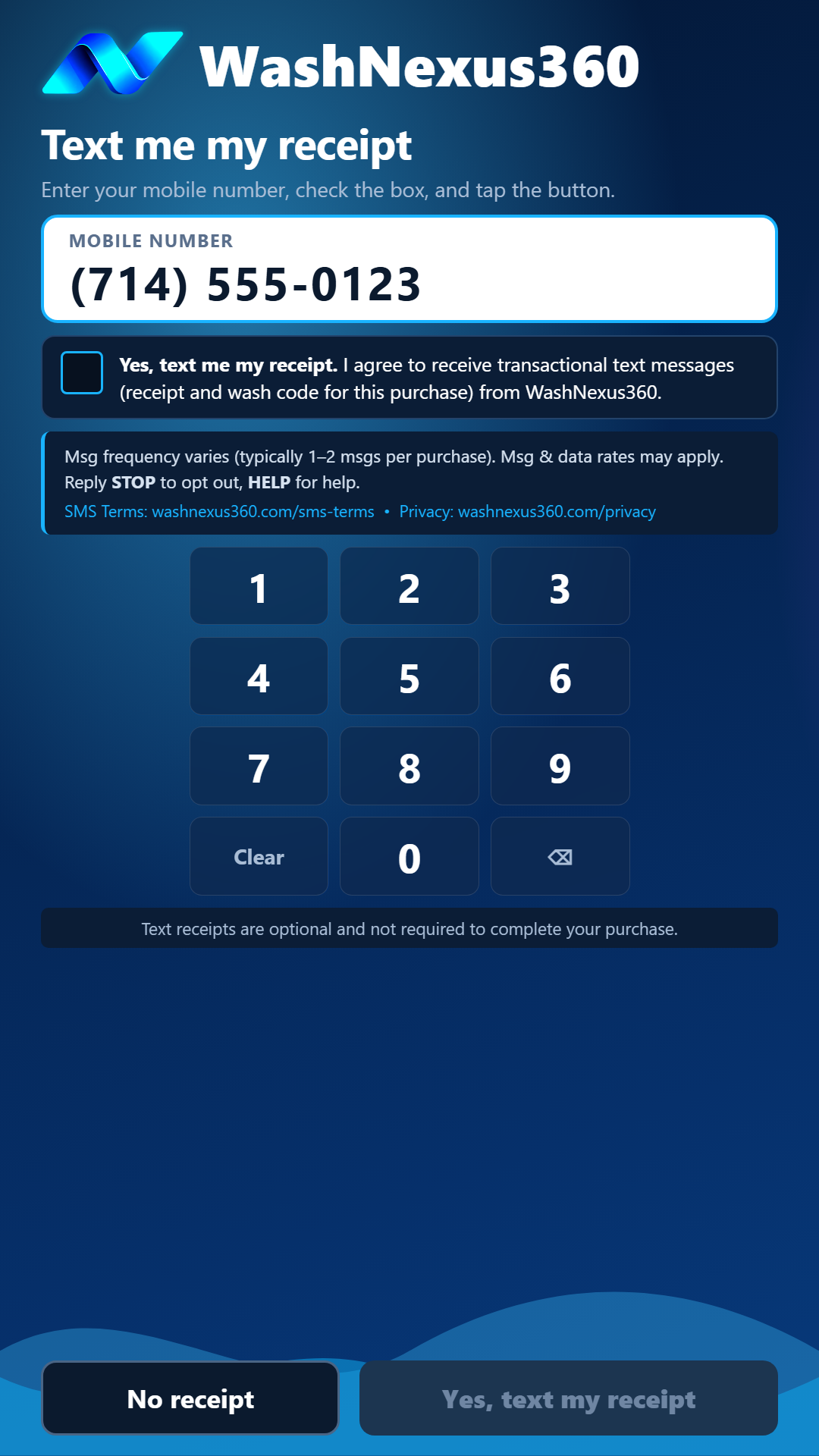
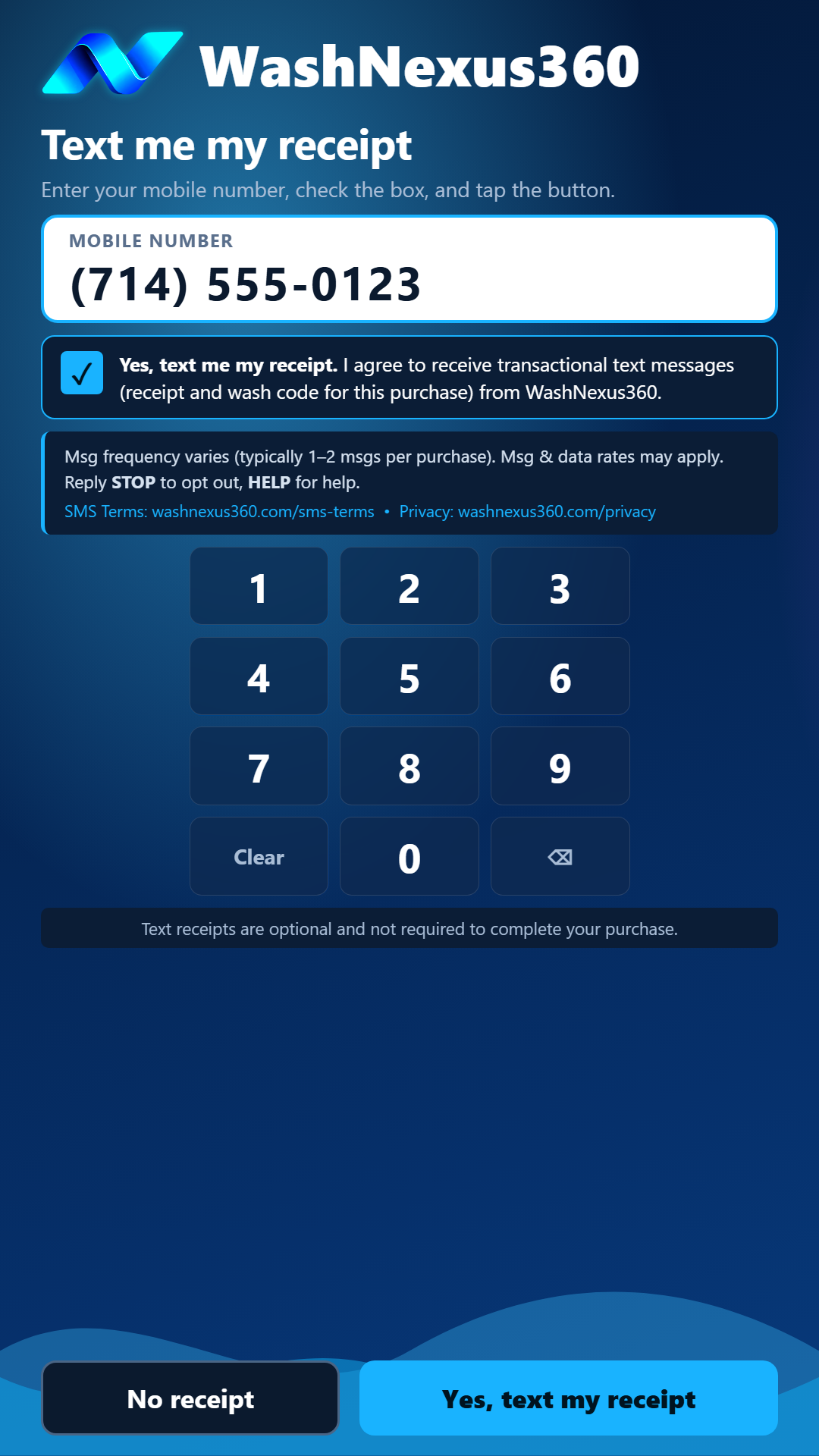
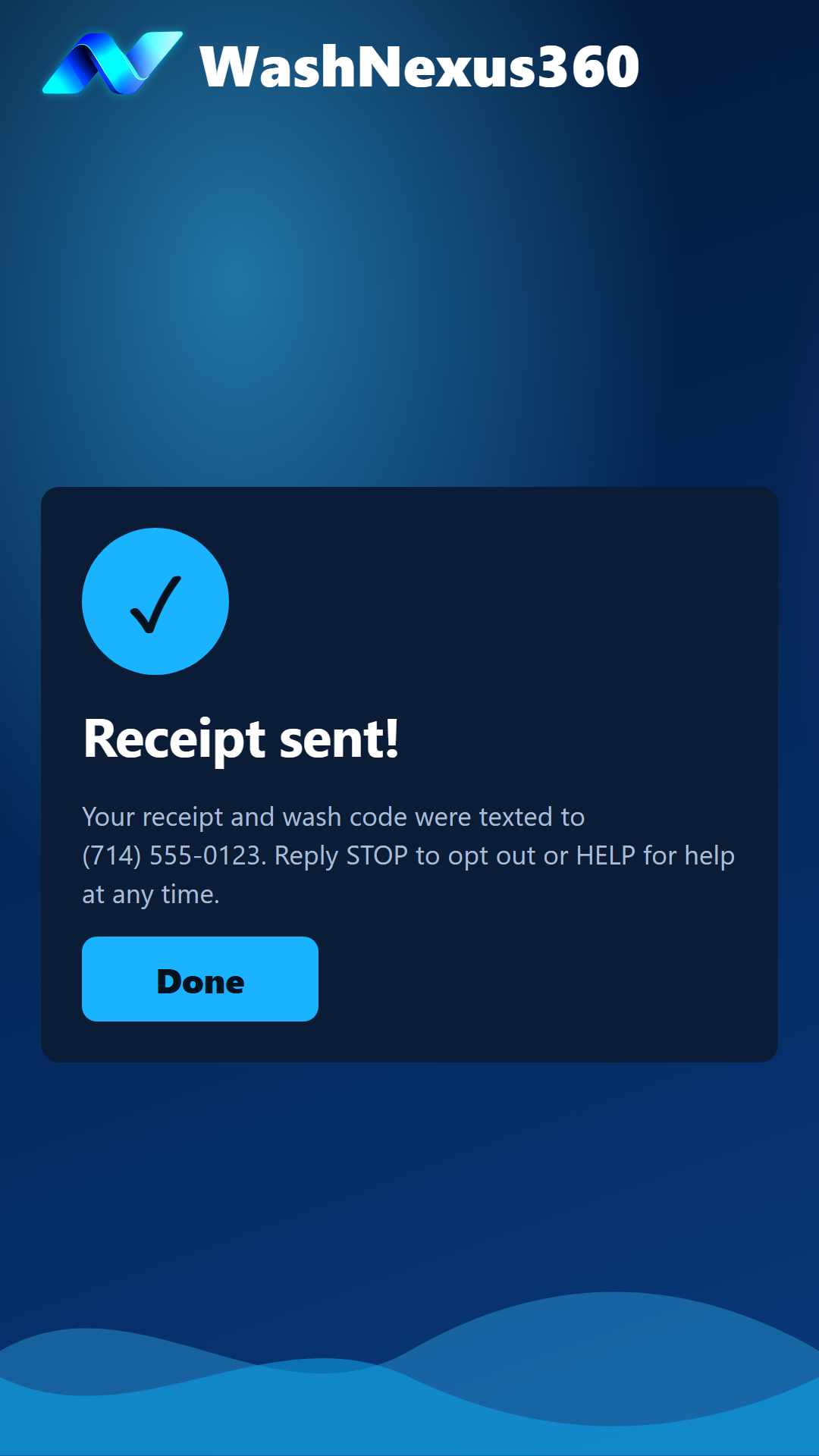
2. Consent language shown on the kiosk
3. The message the customer receives
WashNexus360: Thanks for your purchase! Receipt #10482AAA - Ultimate Wash $18.00, paid Visa ending 4417. Wash code: 482917. View receipt: https://washnexus360.com/r/... Msg & data rates may apply. Reply HELP for help, STOP to opt out.
4. Record of consent
Each opt-in is recorded in our system with the kiosk, the date and time, the number entered and whether the consent box was ticked. Without a ticked consent box no text is sent.
5. Messaging details
- Program: WashNexus360 transaction receipts, sent by Managed IT Services 360 LLC dba WashNexus360
- Frequency: Varies; typically 1-2 messages per purchase
- Cost: Message and data rates may apply
- Opt out: Reply STOP at any time
- Help: Reply HELP, or email info@washnexus360.com
- Privacy: We do not sell or share your SMS opt-in data or personal information with third parties for marketing purposes. See our Privacy Policy.
See our Terms & Conditions (SMS Terms), Privacy Policy and Terms of Service.